HR Interview Guide Form
Submit an Interview Guide Form
The Interview Guide Form is used by the HR Division to document interview evaluations and recommendations for candidates.
| Role | Access Rights |
|---|---|
| HR Manager and Staff | Can create, complete, and submit the Interview Guide Form. |
| Hiring Manager | Can create, complete, and submit the Interview Guide Form. |
| Other Roles | Not permitted to access or view the form. |
Steps to submit Interview Guide Form
- Enter your username/email and password.
- Click Sign In to access the system.

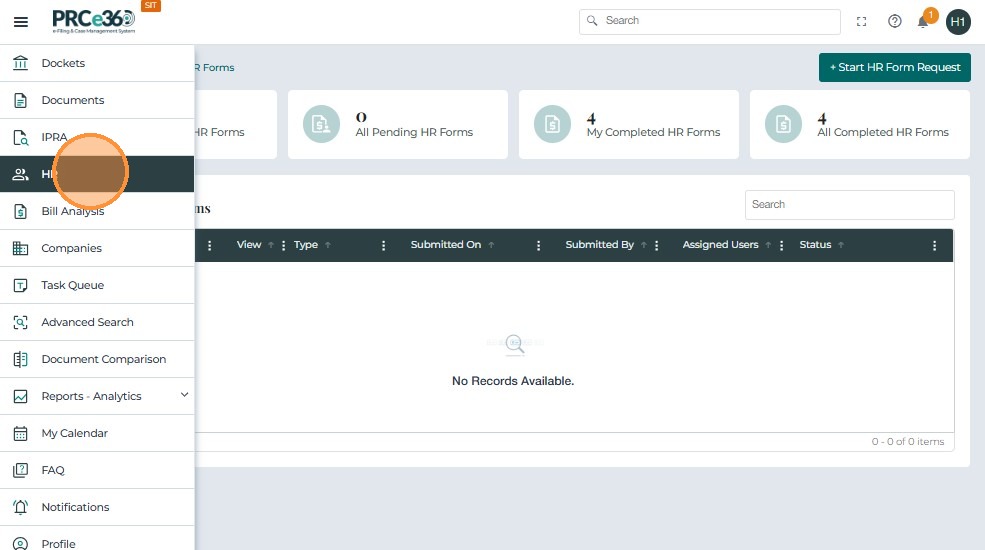
- Once logged in, click the menu icon on the left navigation bar.
- From the menu options, select HR to open the HR dashboard.
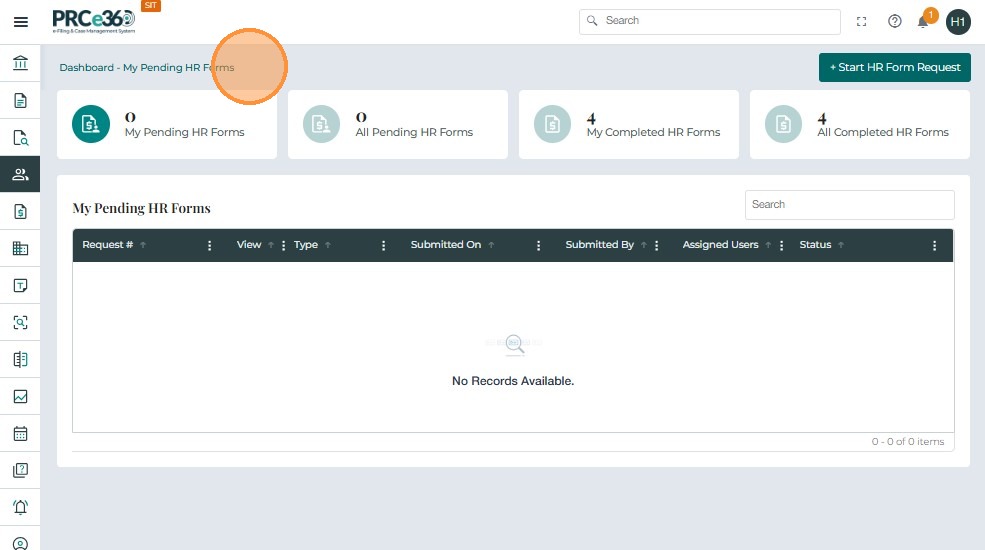
Once inside the HR module, the HR Dashboard displays an overview of your form activity:
-
My Pending HR Forms – forms that are saved but not yet submitted.
-
My Completed HR Forms – forms you have completed.
-
All Completed HR Forms – all forms completed by HR users.
-
Navigate to Dashboard – HR.
- Click the + Start HR Form Request button in the top-right corner.
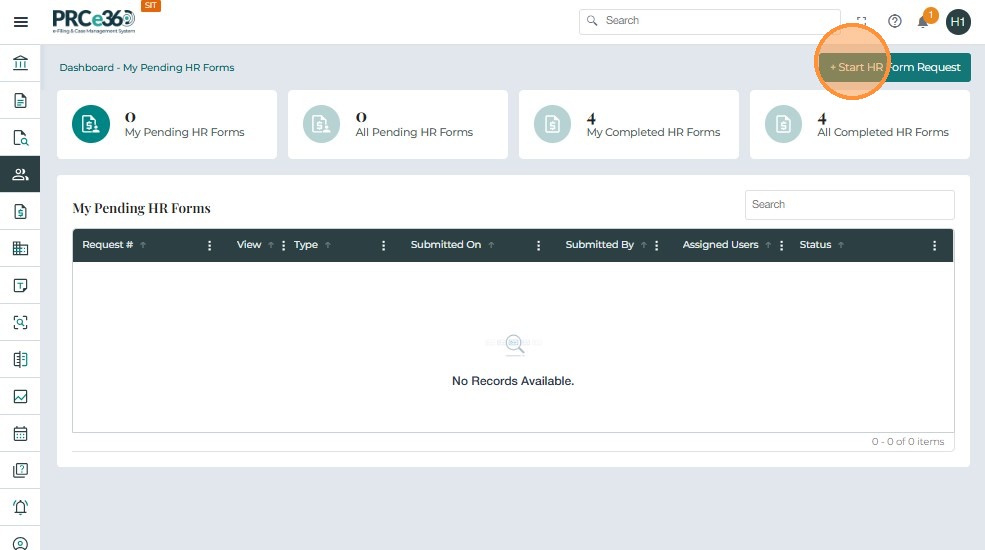
- Click the dropdown to view the HR forms available.
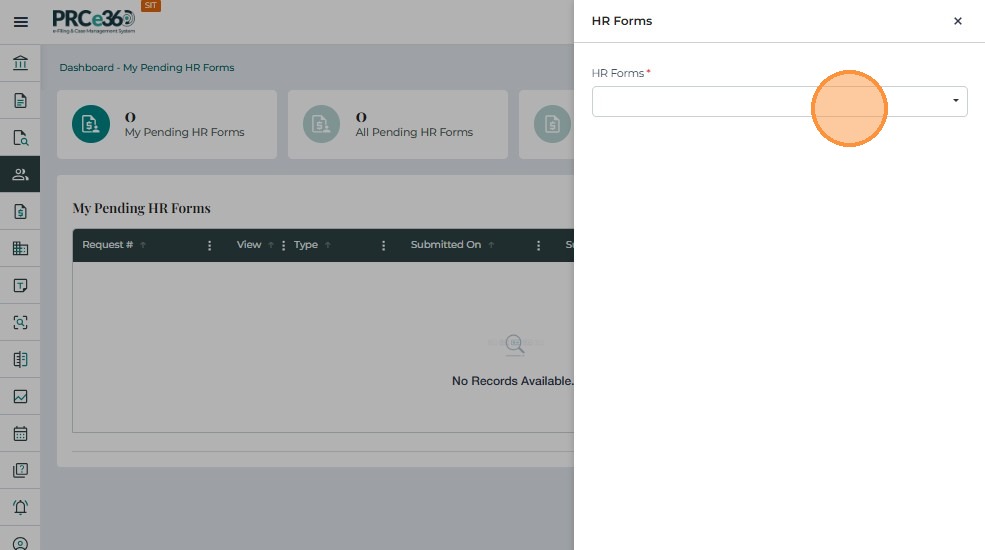
- Click Interview Guide Form to select it.
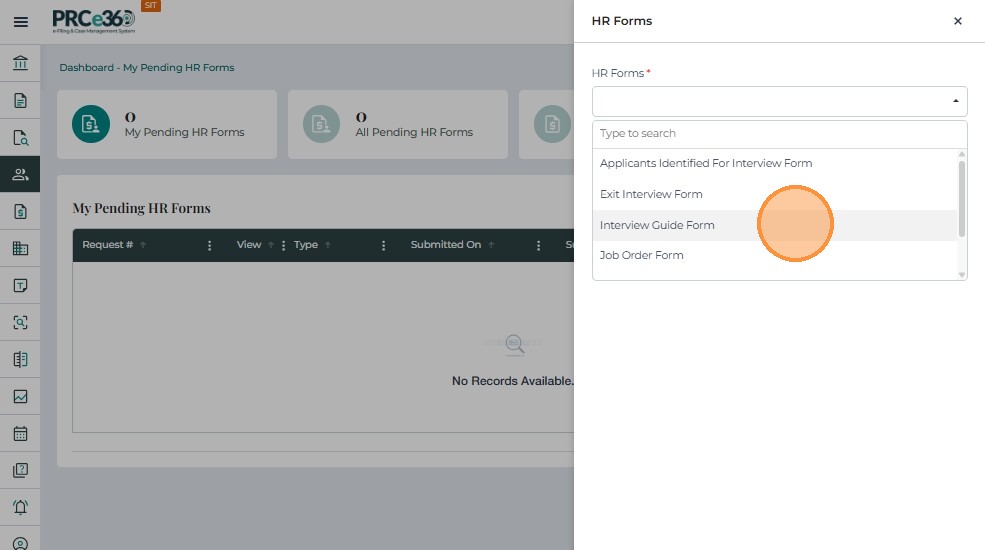
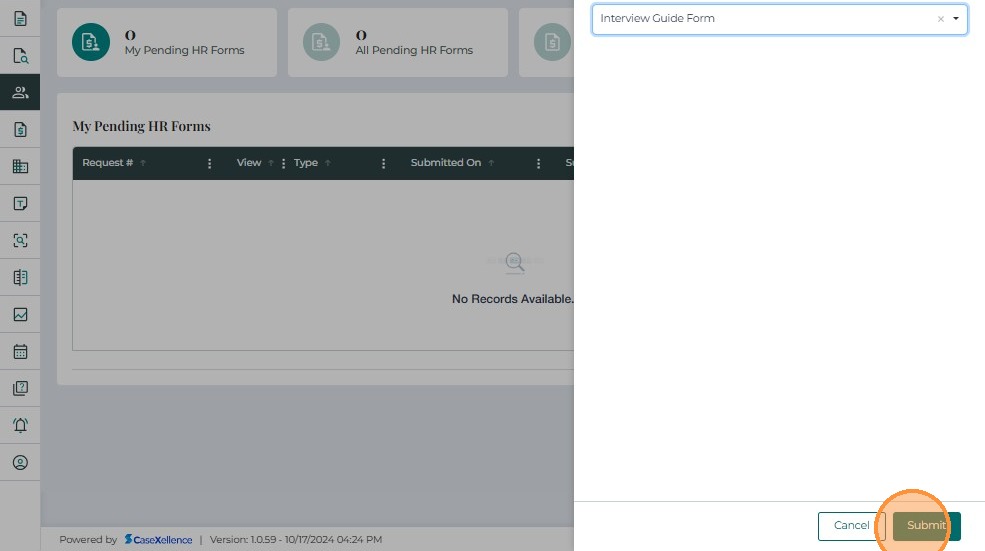
- Once Interview Guide Form is selected, click the Submit button in the lower-right corner.
- The system opens the Interview Guide Form page, where you can begin entering the interview details.
When the Interview Guide Form opens, enter the following applicant details:
- Applicant Name
- Position
- Date
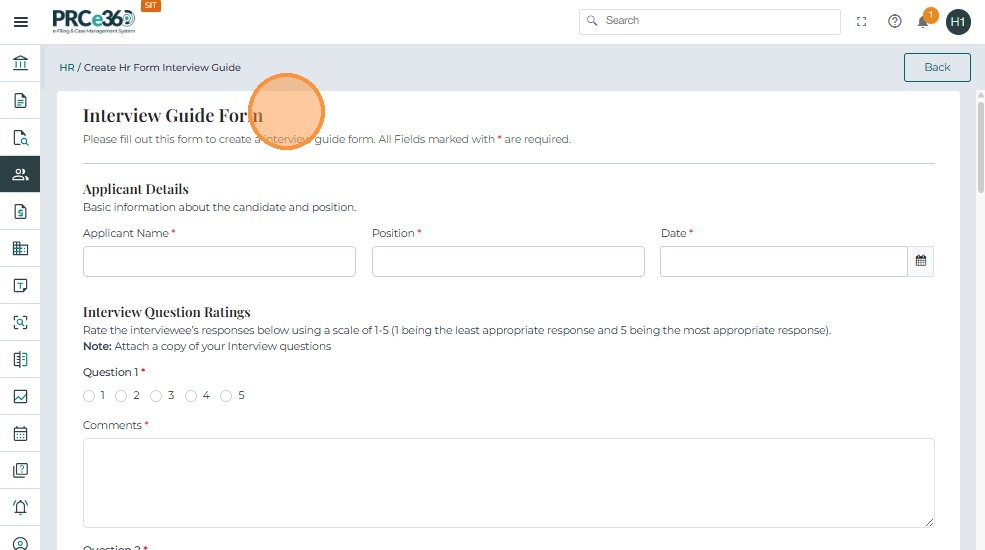
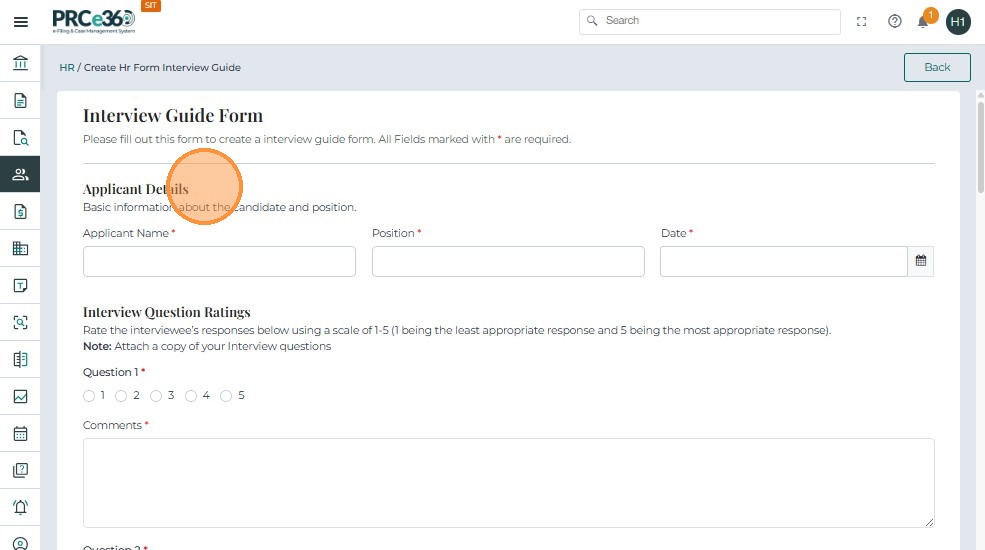
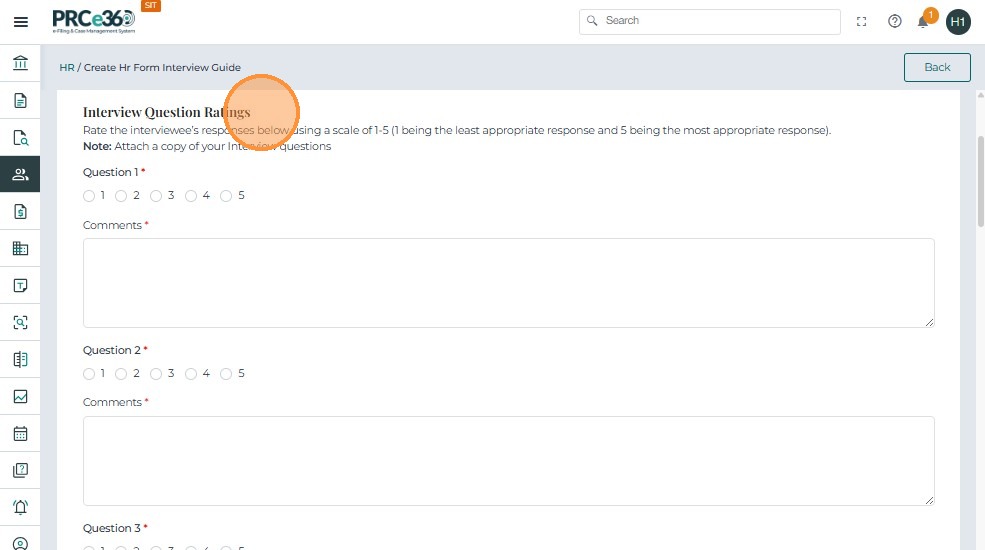
- In the Interview Questions Ratings section, you can rate each interview question from 1 to 5.
- For Question 1 through Question 11, select a rating and add any necessary comments.
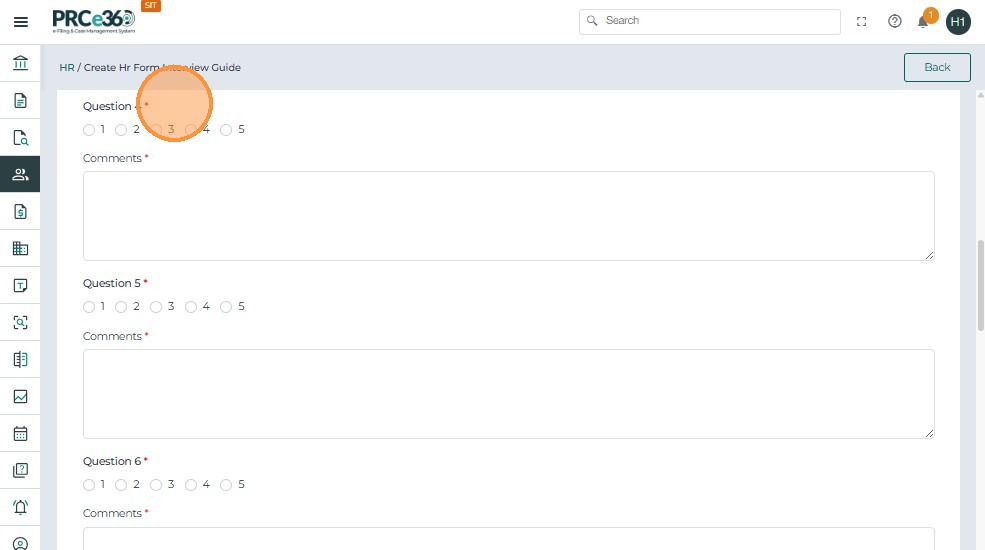
- Provide a brief summary of the applicant and the interview in the comments fields, where applicable.
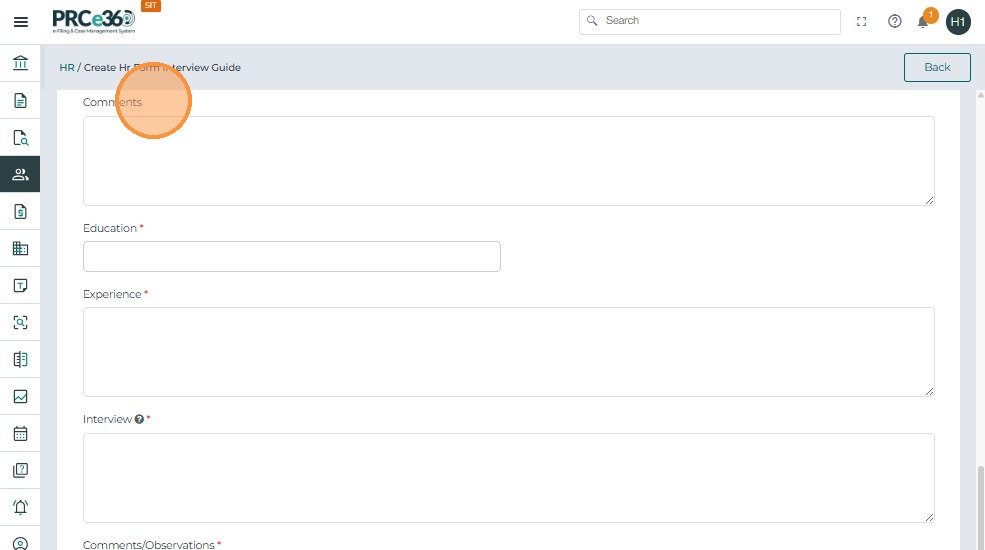
- Based on the ratings given, the Overall Score is calculated and displayed, along with the Rater Signature and Rater Name.
- Click Submit once all details are entered.
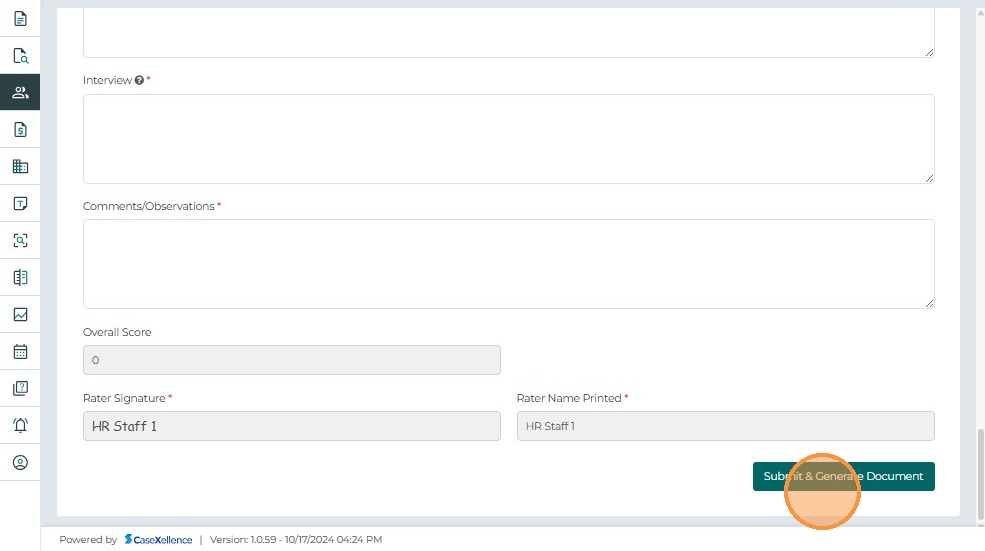
- After clicking Submit, a confirmation message is displayed with a confirmation number.
- Click the Go Back button to navigate to Dashboard – HR.

- Click the All Completed HR Forms queue to view all completed HR forms submitted.
- You can also click My Completed HR Forms to view forms completed by the logged-in user.
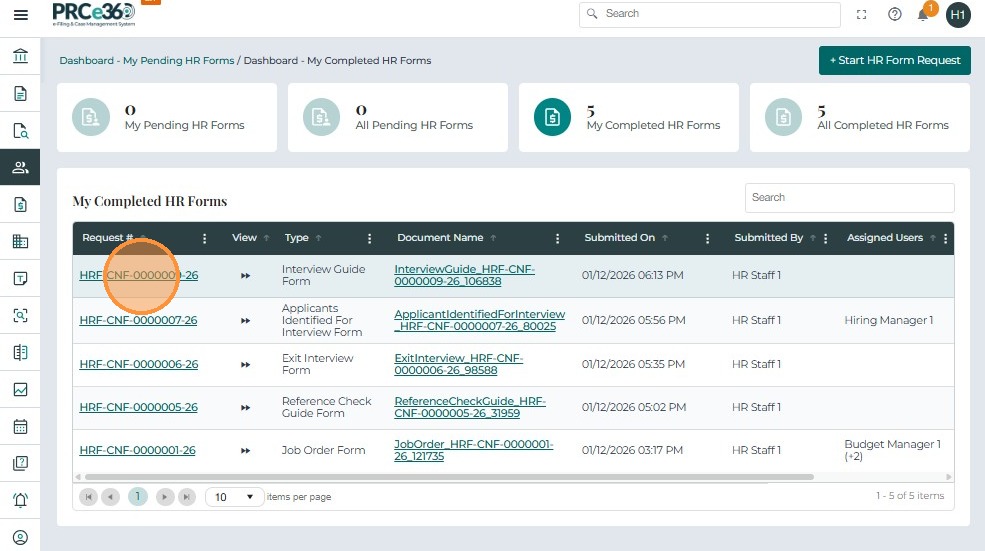
The system displays a list of all completed forms with details such as:
-
Request # – Unique confirmation number for each submission
-
Type – The HR form type (e.g., Interview Guide Form)
-
Document Name – Auto-generated file name for the PDF
-
Submitted On – Date and time of submission
-
Submitted By – The HR user who submitted the form
-
Assigned Users – The roles assigned to this form
-
Status – Displays as Completed
-
Click the Request Number to view the submitted form.
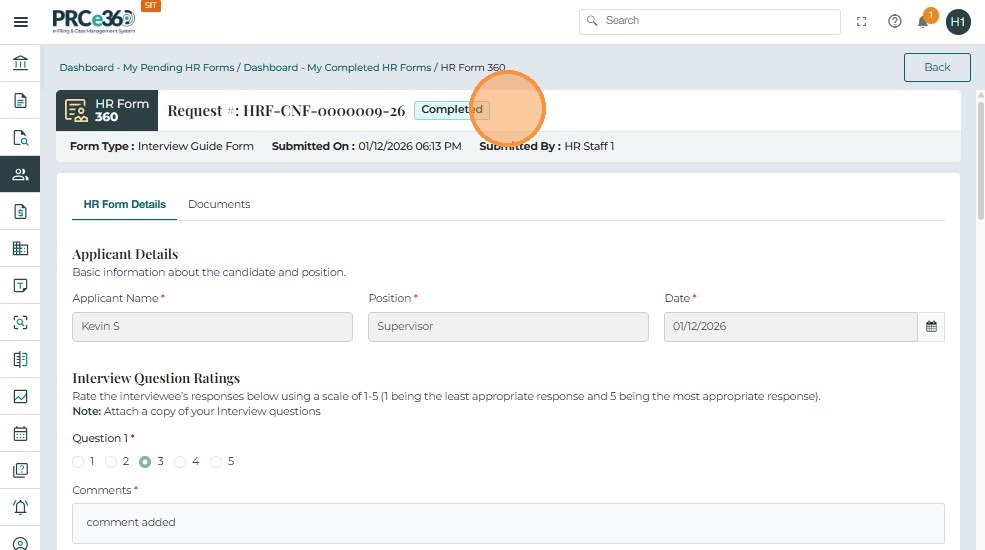
- You are navigated to the 360 case view of the form.
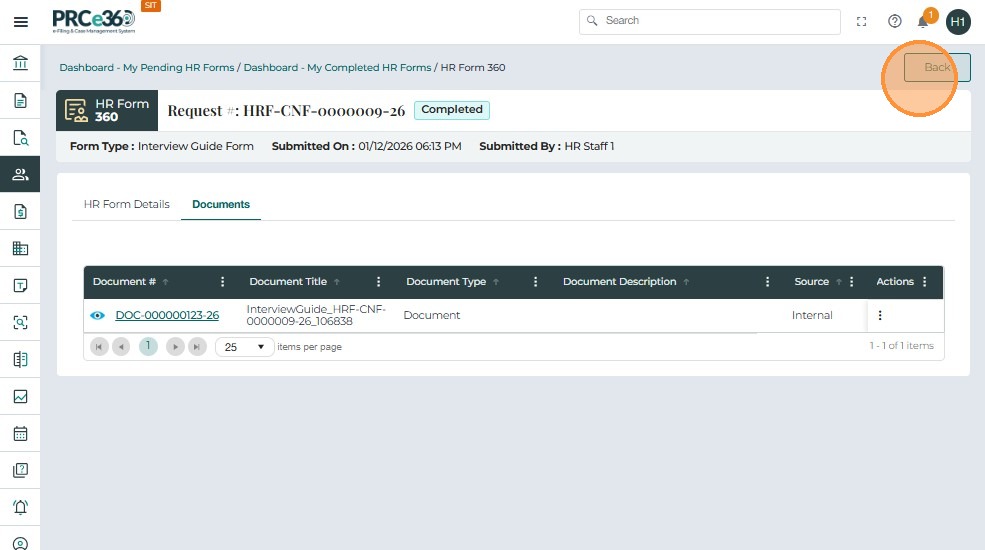
- The HR Form Details tab shows the details that were previously entered.
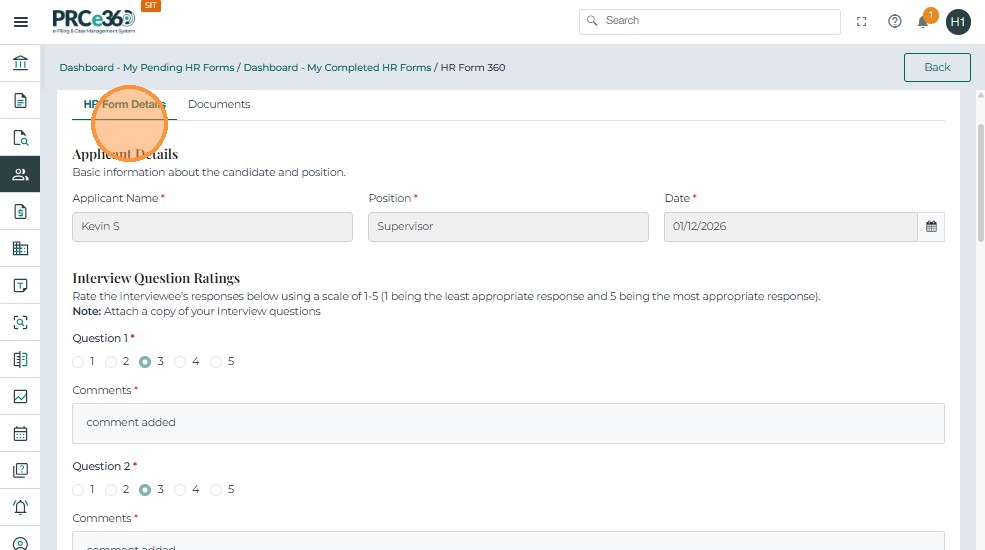
- The Documents tab lists the Interview Guide Form document associated with the request.
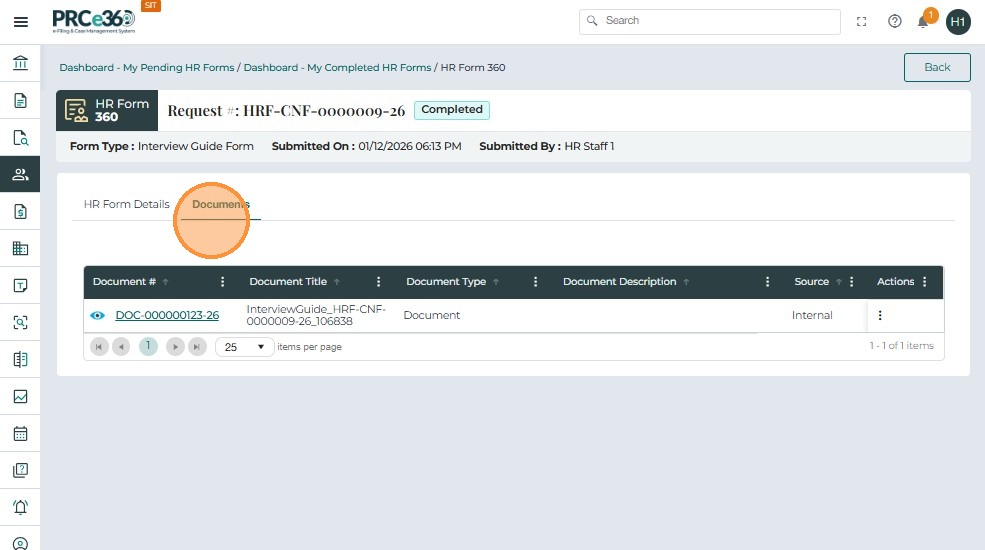
Again, the system displays key document information:
-
Request #
-
Type
-
Document Name
-
Submitted On
-
Submitted By
-
Assigned Users
-
Status
-
Click the Document # to open the Interview Guide Form document.
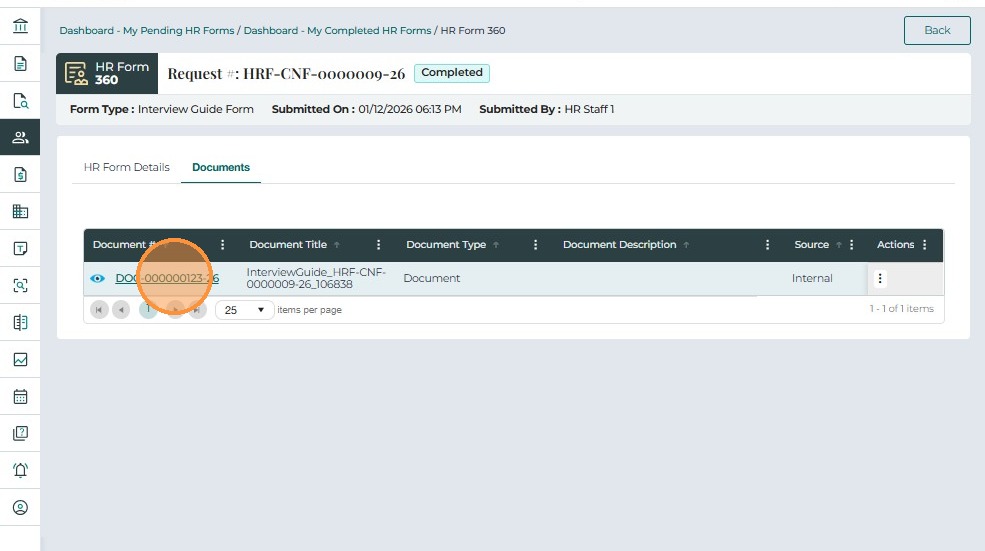
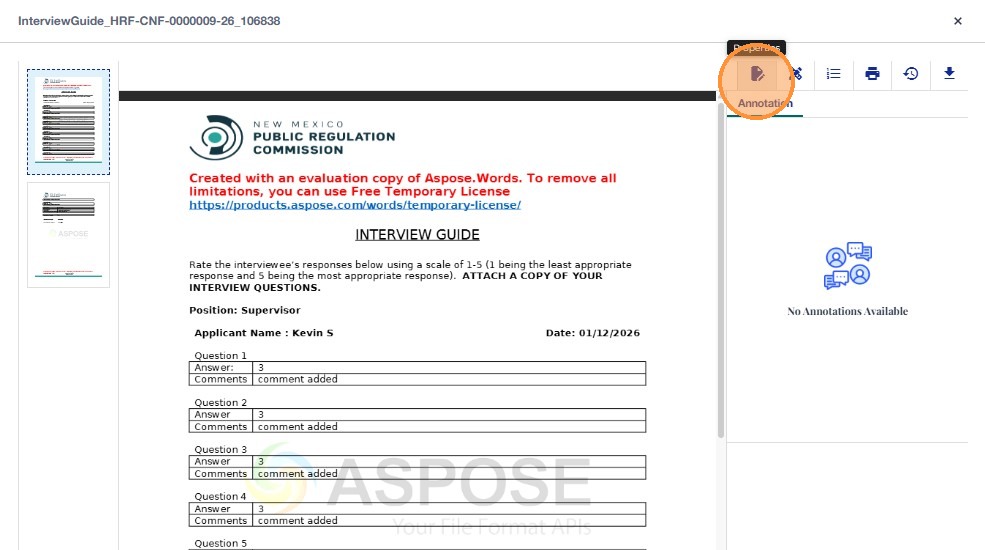
To work with the PDF:
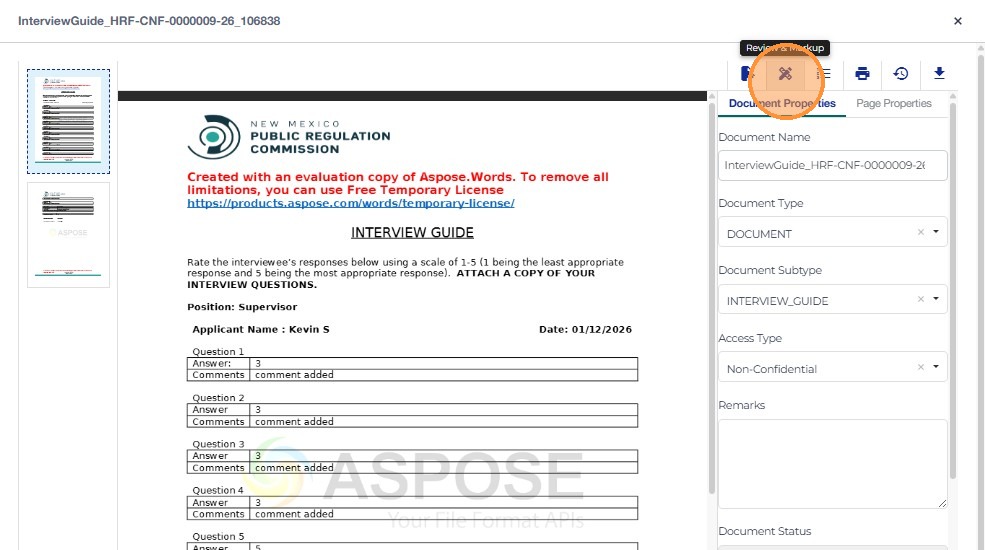
- To view document properties, click the first icon on the top-right of the viewer.
- The Document Properties tab shows the properties of the document.
- You can add or update details and click Update to save.
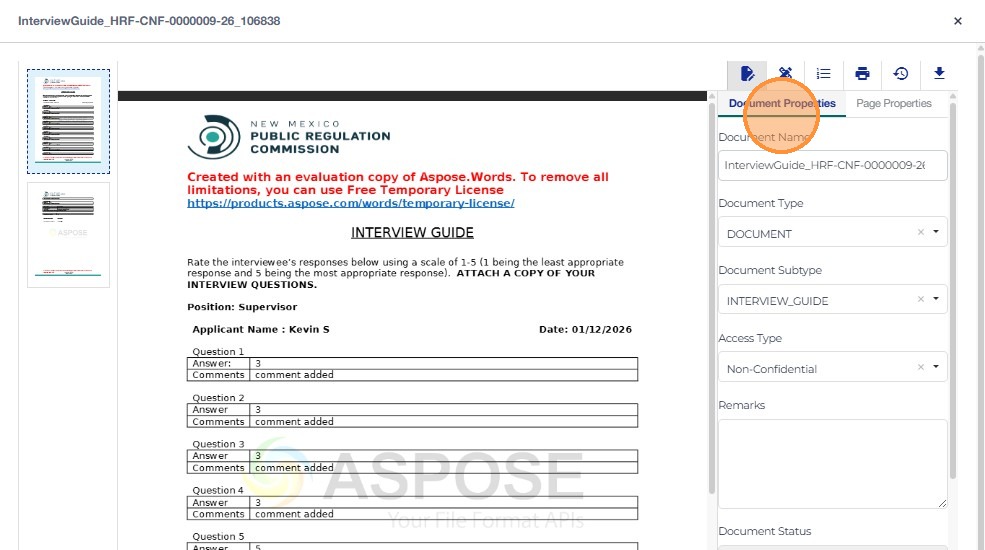
-
The Page Properties tab shows the properties for the current page, if any are configured.
-
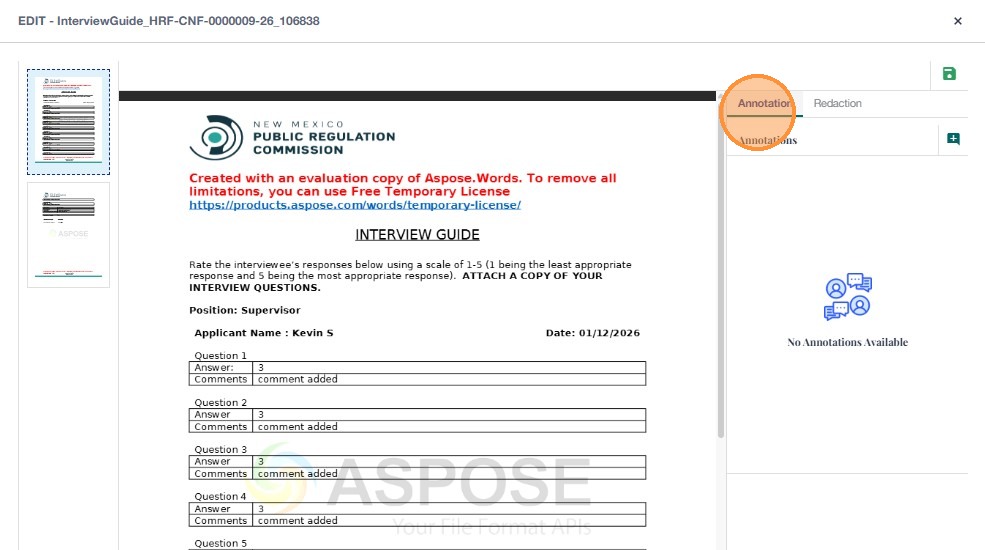
To review and markup the PDF, click the second icon (Review & Markup).
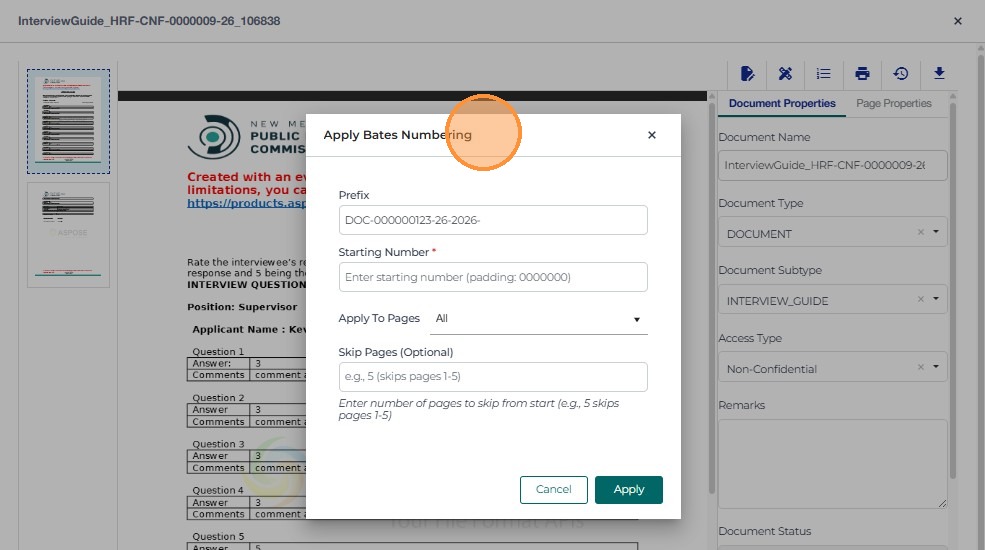
- To apply bates numbering, click the 3rd icon
- A pop up will appear to enter the format

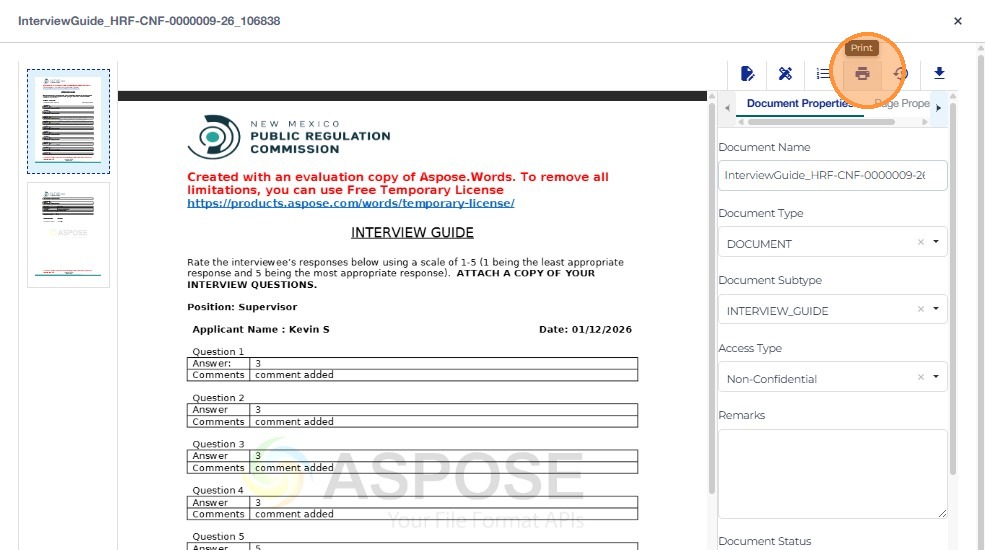
- To print the document, click the Print icon.
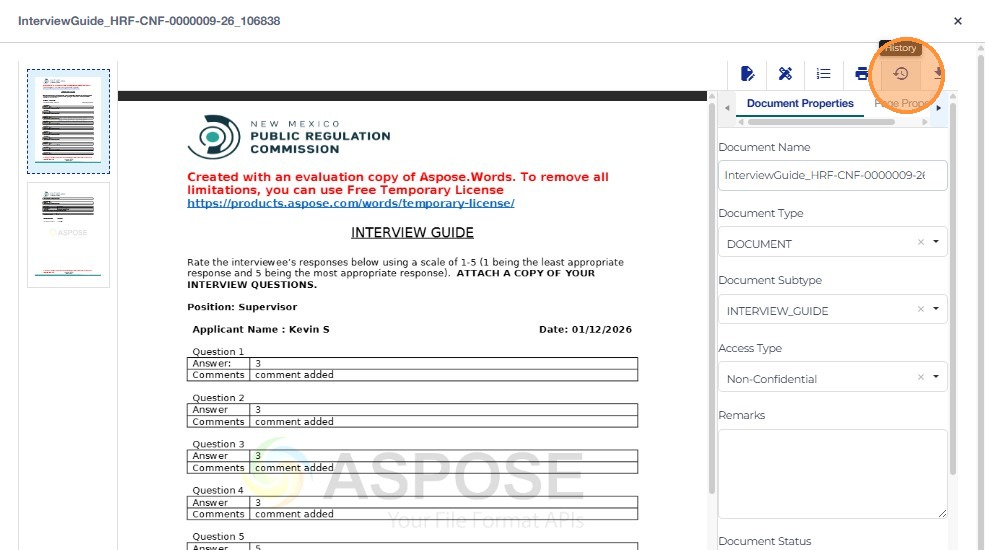
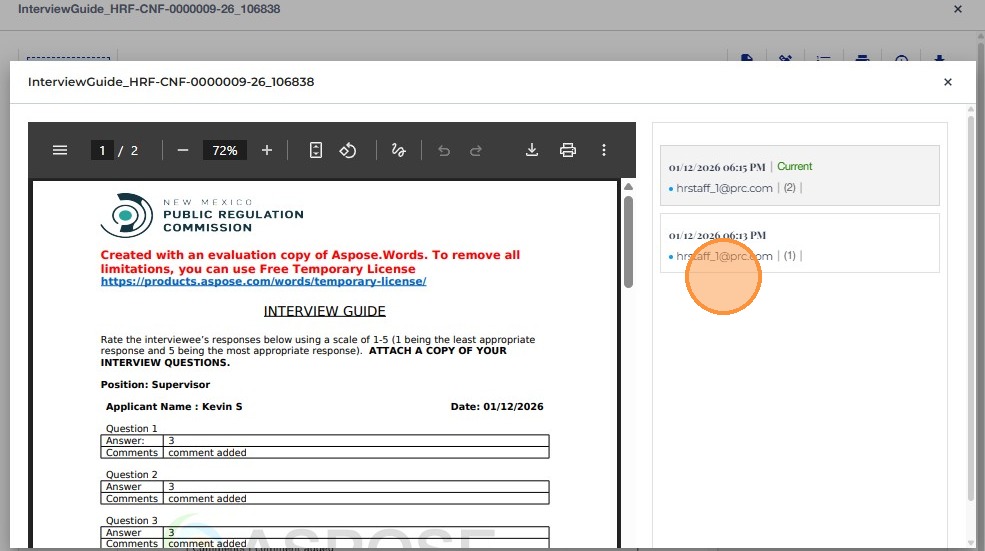
- To view the history of the document, click the History icon.
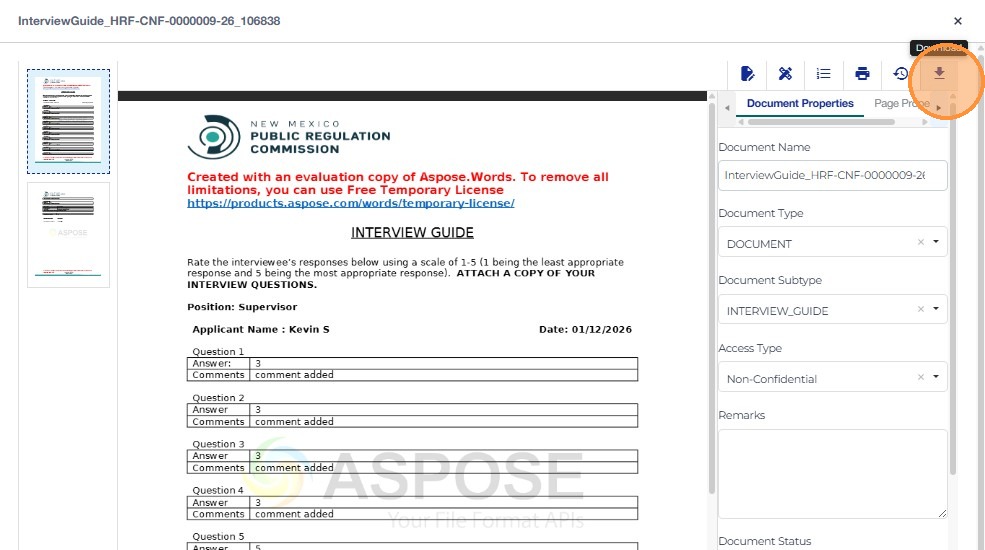
- To download the document, click the Download button.
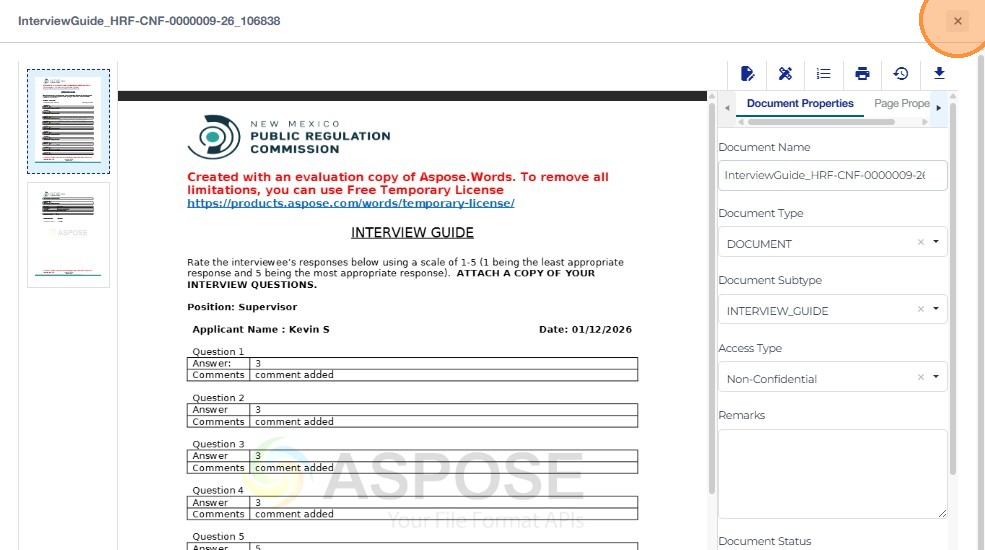
- Once the document is edited or downloaded, click X to return to the HR Forms 360 view.
- Click Actions to view more options for the document.
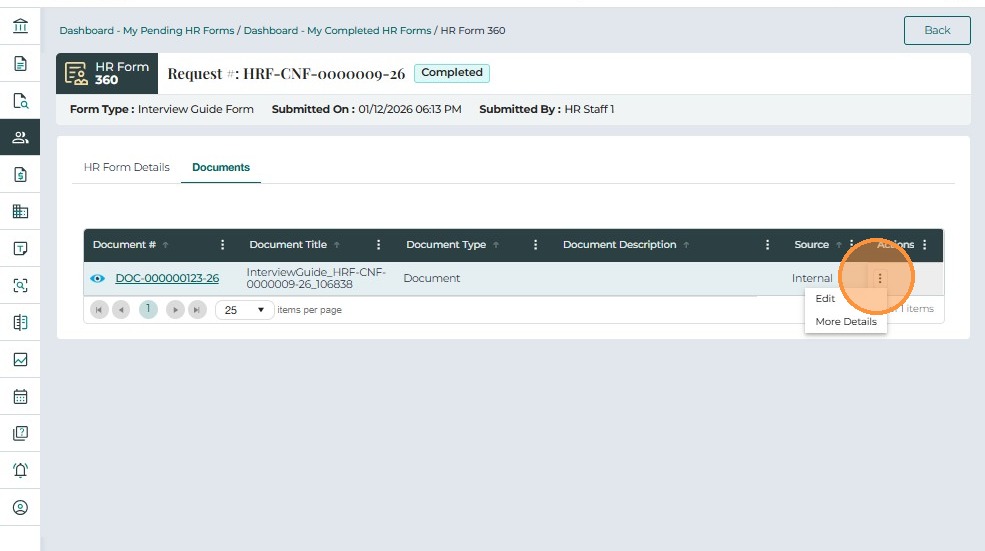
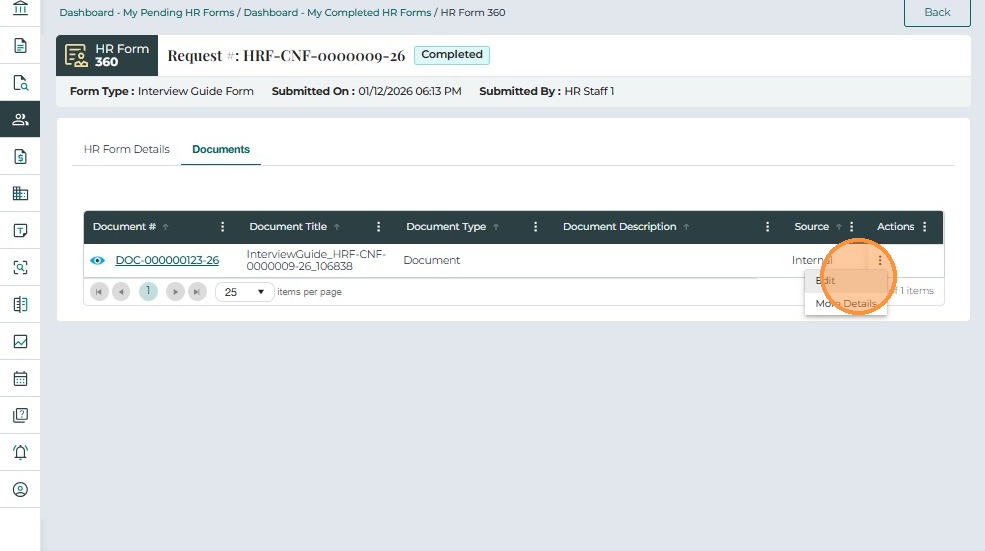
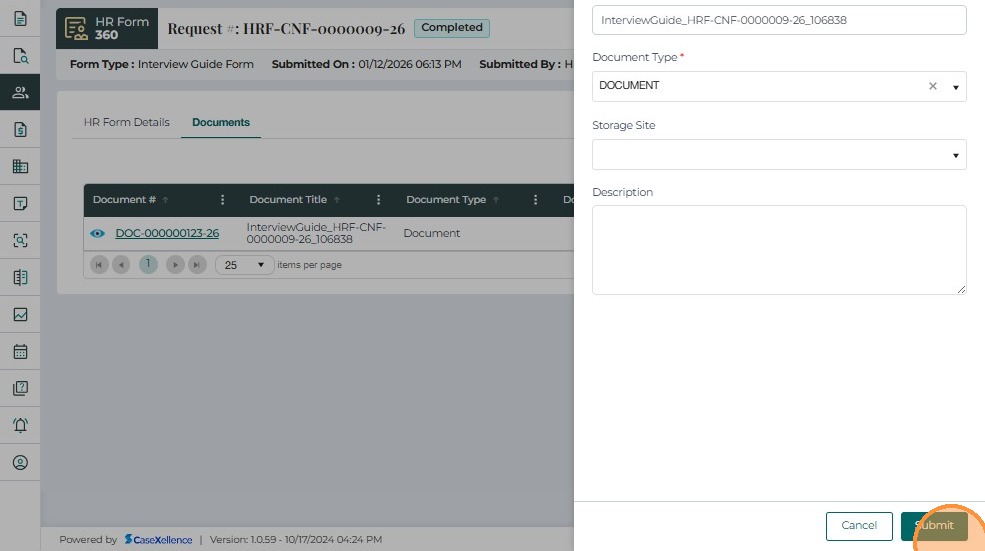
- Edit allows the user to modify document details.

- Once the details are edited, click Submit.
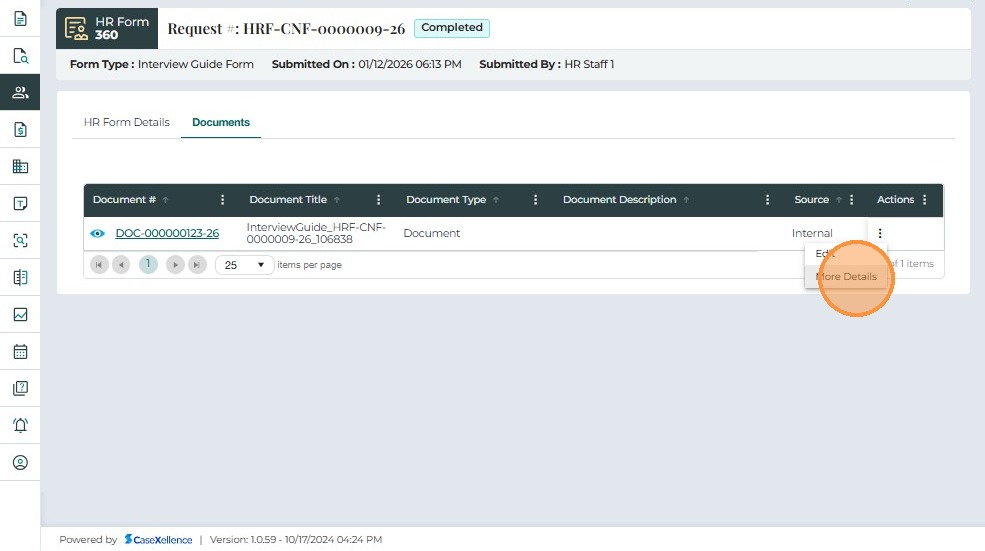
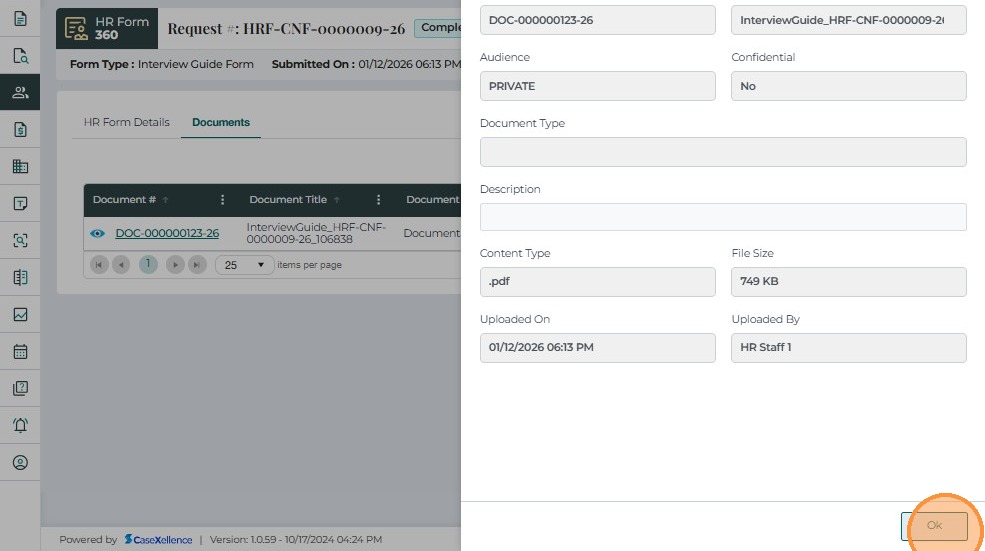
- More Details shows additional metadata and system information for the document.
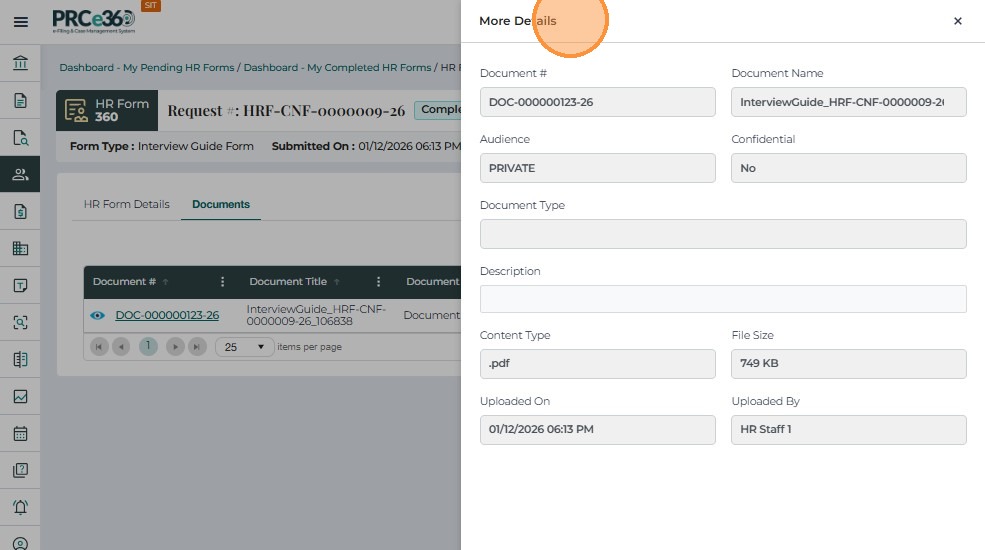
- Click OK once you have reviewed the details.
- Click Back to navigate back to the HR Dashboard.